
How to Set Up Claude Code in <15 Minutes (For Beginners)
Made for non-technical people. Learn, step by step, how to use Claude Code without scary dev terms.


Claude Code is all anyone is talking about in AI right now.
Its name is deceiving.
It sounds like something that's only for developers.
But it's one of the most useful AI tools available today.
That magic AI that was promised?
Claude Code can get you those results.
And it's something anyone can learn with a bit of interest.
No technical background needed.
This guide will show you how to get started in less than 15 minutes.
In This Guide
What is Claude Code?
Anthropic's coding platform that lets engineers and novices "vibe code" (errr... complete work) with the help of AI.
The Simple Version:
Claude Code lets AI read, write, and edit files stored on your computer or a server.
Think of it like this:
You're probably used to talking with AI in a chat window and manually adjusting your documents.
Claude Code allows AI to directly review and modify those files (spreadsheets, docs, notes, etc.), without you needing to copy/paste or attach reference documents.
Some Helpful Background:
Claude Code has been around since February 2025.
It was created by developers, for developers.
And it's largely been the go-to tool for coding since its release (with some recent competition from OpenAI's Codex).
The catch is that the interface can look intimidating to us normies.
And a lot of the conversation about it is overly technical to the point it scares people off.
But Claude Code can do powerful things for the everyday person too.
Keep reading for complete steps on how to get started without the complex stuff.
Why Is Claude Code Having a Moment?
Three things happened in late 2025/early 2026:
1. Claude's newest model was a big capability jump
Their latest reasoning model, Opus 4.5, was released late November 2025.
Surprisingly, there wasn't a ton of buzz around the drop.
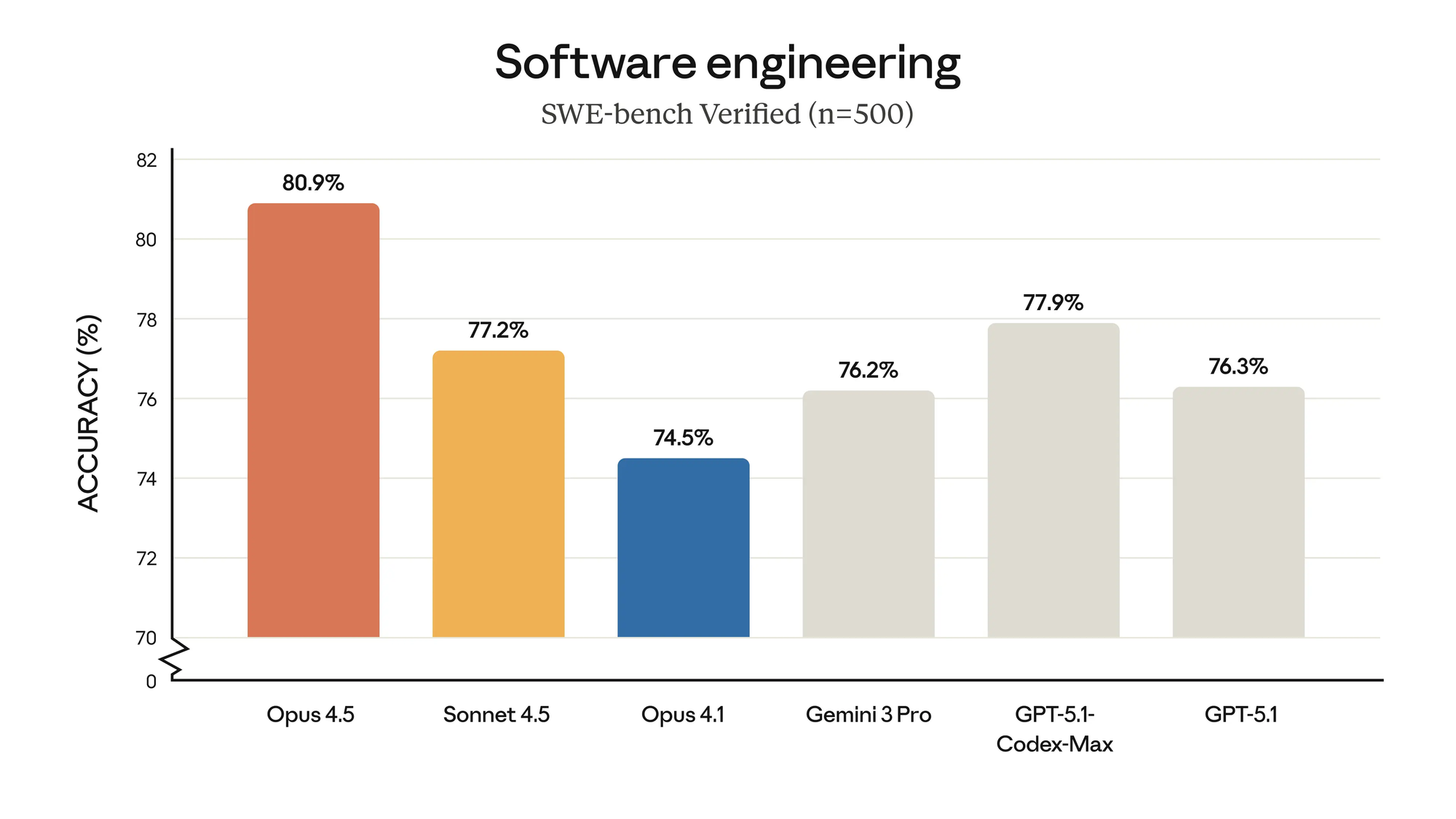
Over time, builders shared that using Opus 4.5 with Claude Code was giving them crazy results.
With many agreeing this is the first model that feels like a senior engineering teammate.
It is much better at complex coding and workflow tasks.
Which allows people to let Opus 4.5 rip and complete work autonomously.
Meaning more responsibility (longer projects, bigger changes, more trust) and easier debugging sessions.

Ralph Wiggum = A cheery and persistent Simpsons character and also a Claude Code plugin that runs autonomous loops until tasks succeed.
The plugin paired with Claude Code and Opus 4.5 has been wowing people. Some are calling it 'the closest thing to AGI' since it's shipping good code at scale.
Ralph represents a move towards actual autonomous work.
2. Claude Code updates have made it better at doing work
Anthropic released version 2.0 of Claude Code in late September 2025.
They've also made ongoing updates to the platform since then.
New versions added:
- Bigger Context Windows: Process and remember significantly more info at once, allowing it to handle huge projects or hundreds of pages of docs.
- Skills: Save specific sets of instructions or complex workflows that Claude automatically recognizes and follows whenever you give it a relevant task. [Check out this guide: How to Set Up Claude Skills in <15 mins]
- Subagents: For large or multi-step projects, Claude can split itself into smaller versions that work on different tasks simultaneously to save time.
- Hooks: Set up rules so that specific actions (ex: checking for errors or sending you a notification) happen automatically.
- Better Orchestration: Claude can create multi-step plans, carrying out steps one by one, and verifying that the final result works before telling you it’s done.
3. Real-world builds are finally good enough to go viral
I recently wrote about social discourse preceding product utility.
Every time a new AI product drops, the feed floods with hot takes from users who have barely used the tools they're talking about.
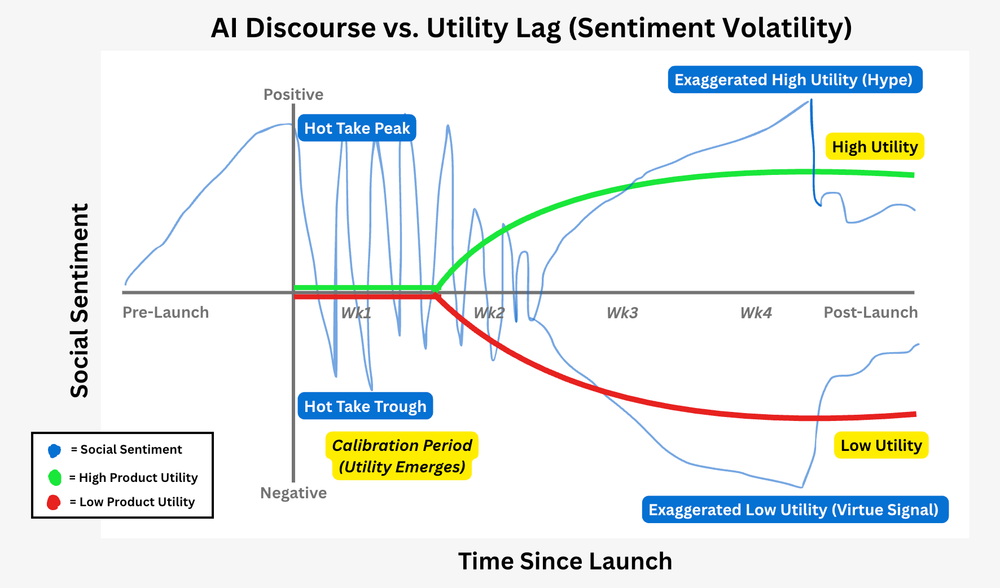
It took a few weeks after Opus 4.5's release for builders to share their opinions.
Now that the pair (Opus 4.5 + Claude Code) has been validated, everyone is jumping on it.
The good news is that the hype is also fueling great examples of how people are using it for non-technical work.
Why Non-Technical People Should Care
It's called Claude Code... but that doesn't mean you need to use it to code.
Here's what it can do for the rest of us:
→ Automate repetitive work at scale
That spreadsheet you clean every week or the report you format every Friday?
Drop them in a folder and tell Claude Code what to do.
Then run it every time you need to complete that task going forward.
- Examples:
- Clean messy spreadsheets (fix columns, standardize data)
- Batch rename hundreds of files with consistent naming
- Convert customer feedback into categorized insights
- Generate weekly reports from raw data
→ Build simple tools and prototypes
Great for low-risk internal or personal tools without needing to wait for developer bandwidth or budget.
Describe what you want and have Claude Code build it.
- Examples:
- Ad copy scorer that ranks variations and suggests tweaks
- SEO audit tool that scans your site for broken links and keyword gaps
- To-do app customized to your quarterly tasks
- Campaign performance analyzer that flags weak spots
→ Find insights you're missing
Feed it your unorganized data (call transcripts, notes, competitor research, campaign results, etc).
Claude Code can spot patterns and opportunities you'd never see manually.
- Examples:
- Feed it 6 months of customer calls to see what's killing your close rate
- Build a second brain from your notes or email archives
- Drop in competitor content to map positioning gaps you can own
- Share campaign data to spot which audience segments you're ignoring
These examples are the tip of the iceberg.
Test Claude Code on a small task.
Once you get it working, you'll start to see what it can handle.
Then you'll start noticing more opportunities relevant to your world.
Where To Start
First, you'll need a paid Claude subscription (starts at $20/month in the US).
Once that's set up, you're ready to go.
Here are five ways to access Claude Code, ranked from easiest to most technical:
1. Claude Desktop App (Start Here)
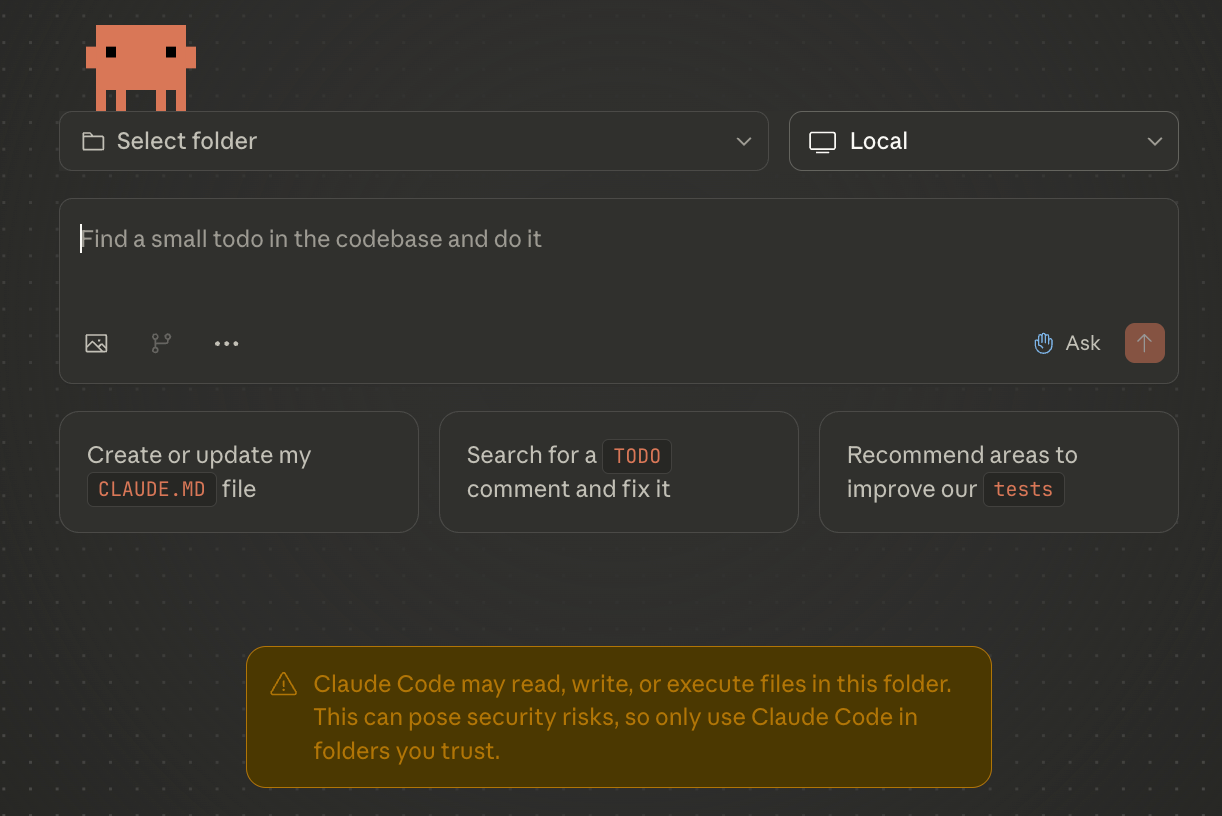
I highly recommend non-technical people start with the Desktop App.
It's way easier than the other options, which you can explore after you get going.
- Access:
- Download it here (Claude Code requires paid subscription)
- Locate the left-hand nav panel. Click "Code" instead of chat
- You may have to install some dependencies before you can use it
- Why use it:
- Easiest setup
- Most user-friendly interface, similar to chatbot
[More info on Claude Code on the Claude Desktop App here].
2. Claude Web Browser
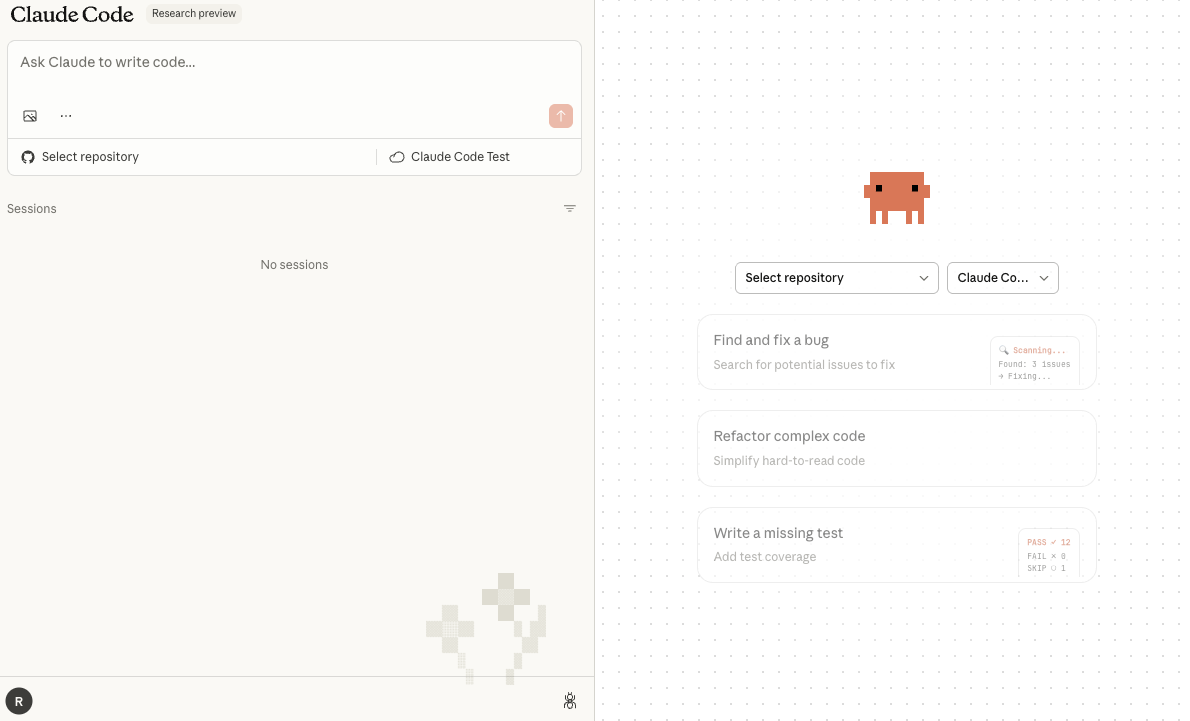
Avoid this unless you're ready to lean into more technical stuff.
If you do this, I highly recommend learning Git Hub basics.
- Access:
- Log into Claude.ai (Claude Code requires paid subscription)
- Locate the left-hand nav panel. Click "Code"
- You will have to create or link a GitHub account
- Git Hub = a cloud-based platform that stores code files
- Once GitHub is linked, create and select which repositories it can access
- Repository = digital project folder + record keeper
- Why use it:
- No installs
- Works anywhere
[More info on Claude Code in the Claude Web Browser here.]
3. Code Editor Tools (IDEs: Cursor, Windsurf, VS Code)
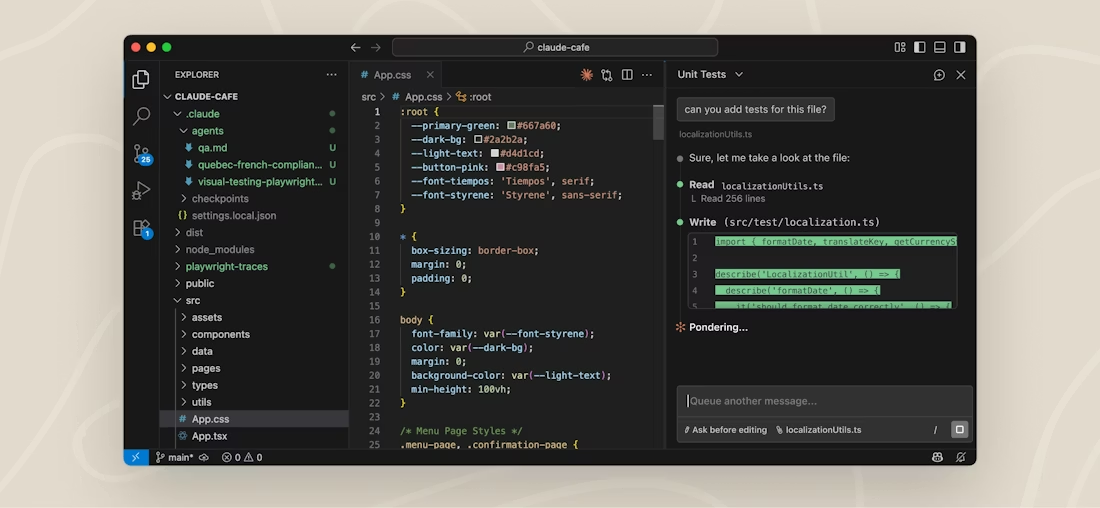
These are known as IDEs or integrated development environments.
They're interfaces where you can see and manage file updates.
- Access:
- Why use them:
- See file changes Claude Code makes
- Can feel safer since you have more edit and review control
4. Terminal (CLI)
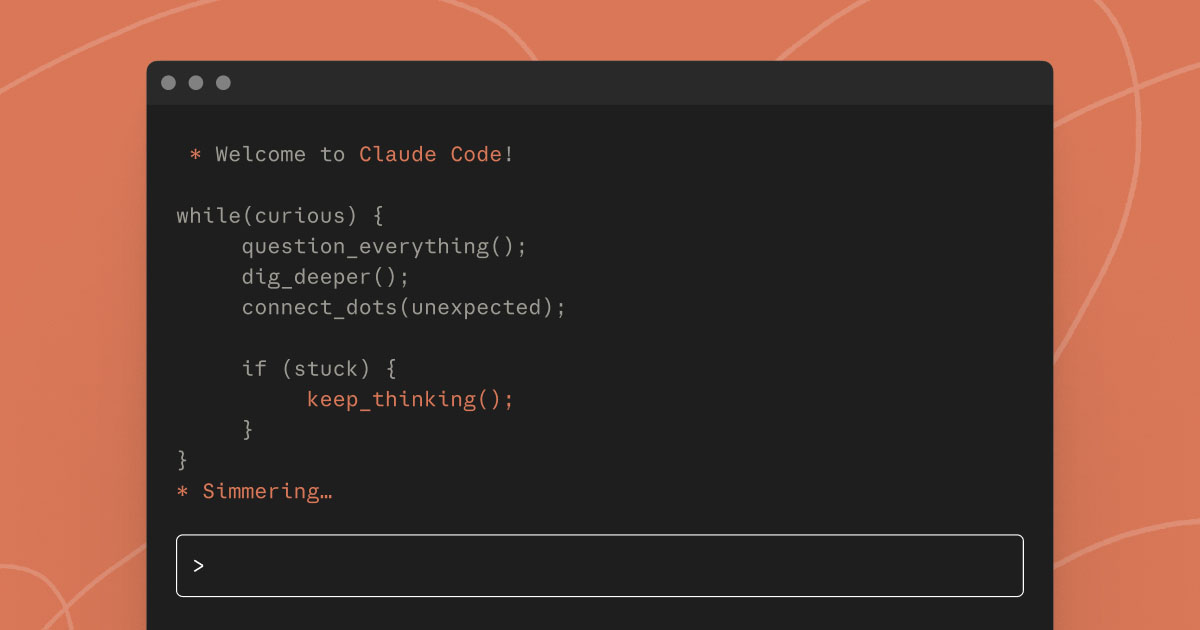
This is probably the scariest way to access Claude Code for non-coders.
It's a black screen with test only. No mouse or file previews.
- Access:
- Open Terminal app by searching for it on your Mac or PC
- Run commands to download Claude Code
- Log in to Claude in Terminal (Claude Code requires paid subscription)
- Why use it:
- Fast setup
- Handles giant folders that IDEs and other Claude Code versions can't
[More info on using Claude Code in Terminal here].
5. Claude Chrome Extension
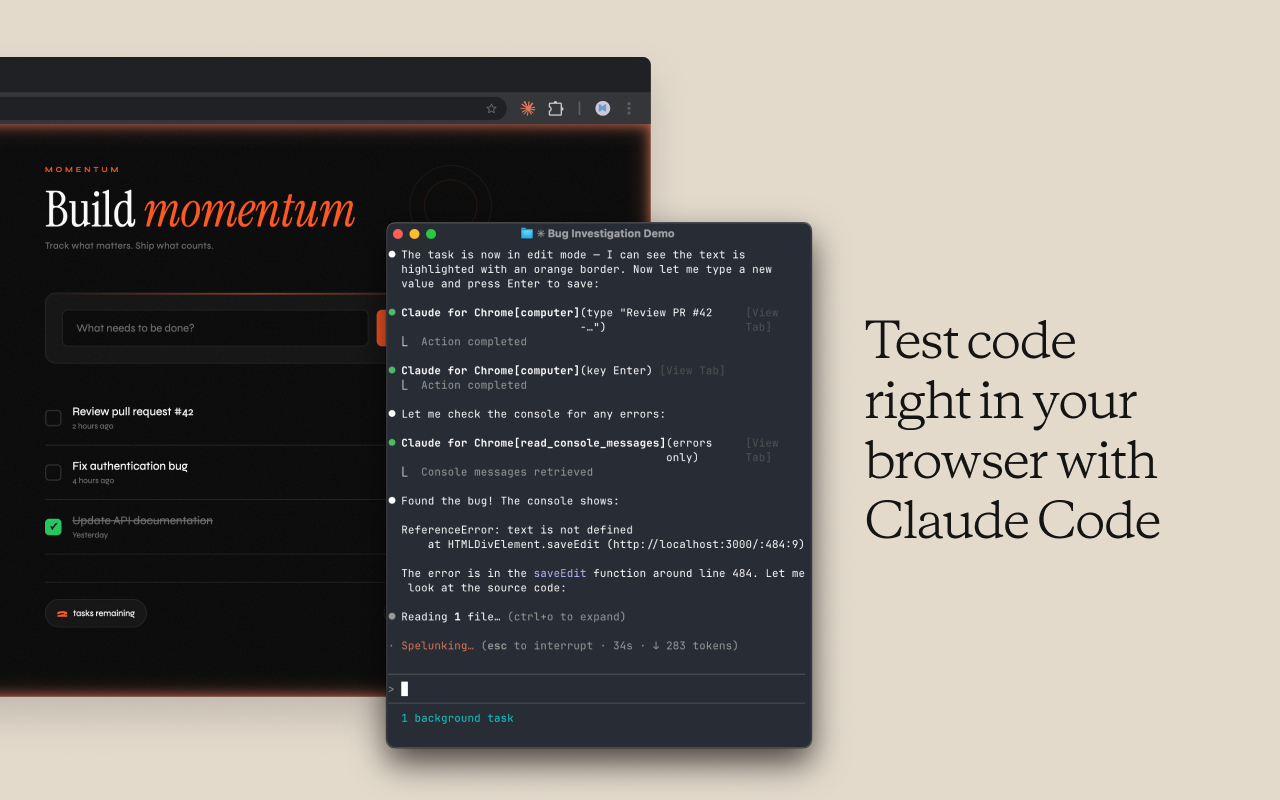
Using Claude Code in Chrome unlocks powerful web capabilities.
But it requires you set Claude Code locally on your device too.
See set up for #3 Code Editor Tools or #4 Terminal CLI.
- Access:
- Install the Claude Chrome Extension
- Allow it to access your account (Claude Code requires paid subscription)
- You must have Claude Code CLI version 2.0.73 or higher installed
- See instructions (open Terminal > run "claude update" > run "claude --chrome" > run "/chrome" commands)
- Why use it:
- Gives Claude Code access to the web and real-time data
- Sees your open tabs and automates browser tasks
- Claude can navigate pages, fill forms, pull data, etc.
[More info on Claude Code in the Chrome Extension here.]
How to Get Started in <15 Minutes
Ready? Here's the dead-simple process.
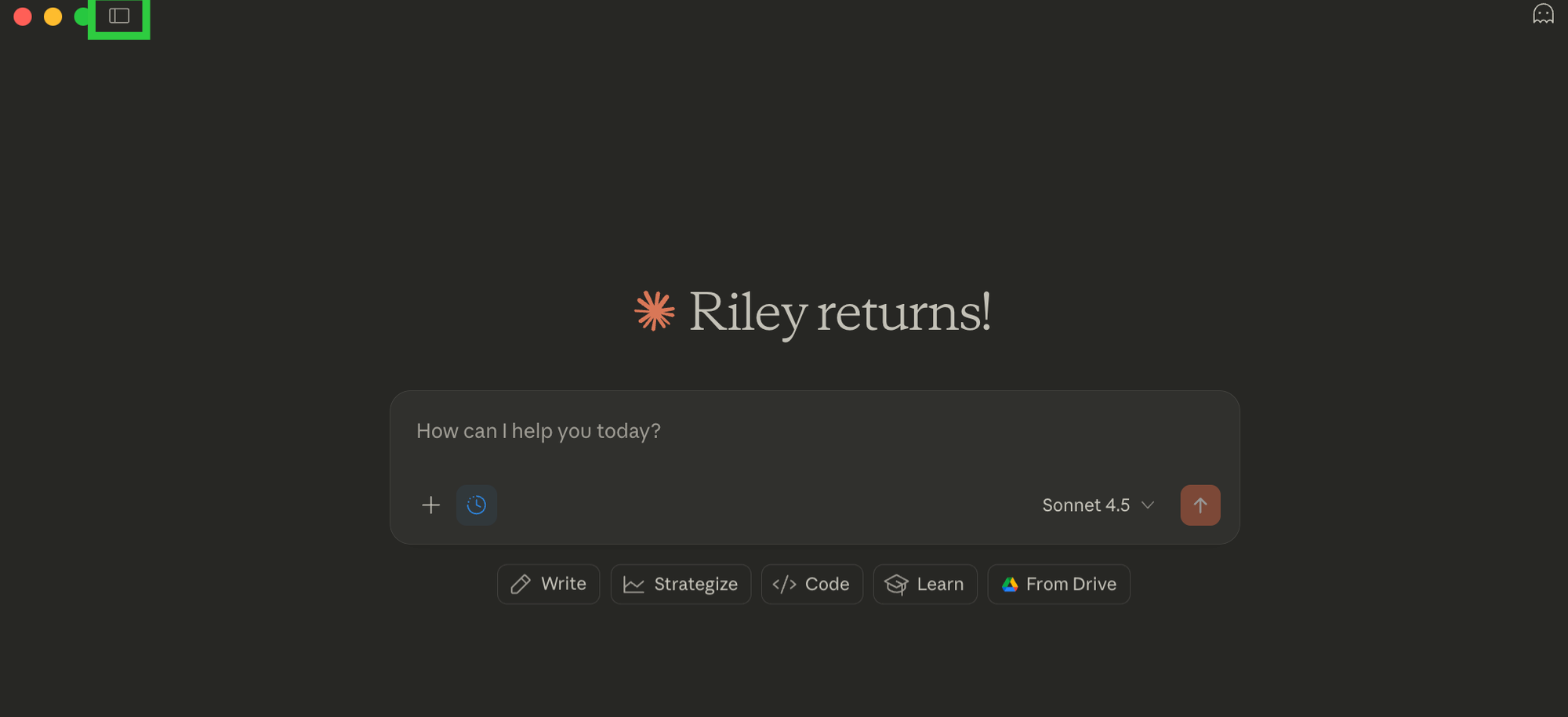
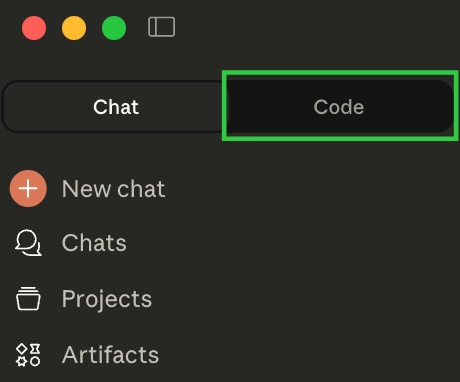
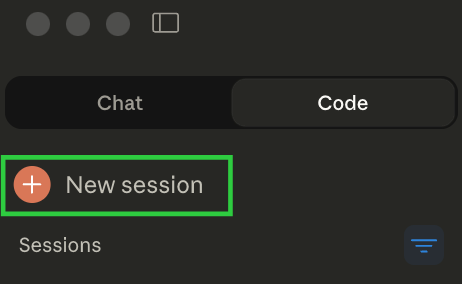
- Do this for each new project or workflow.
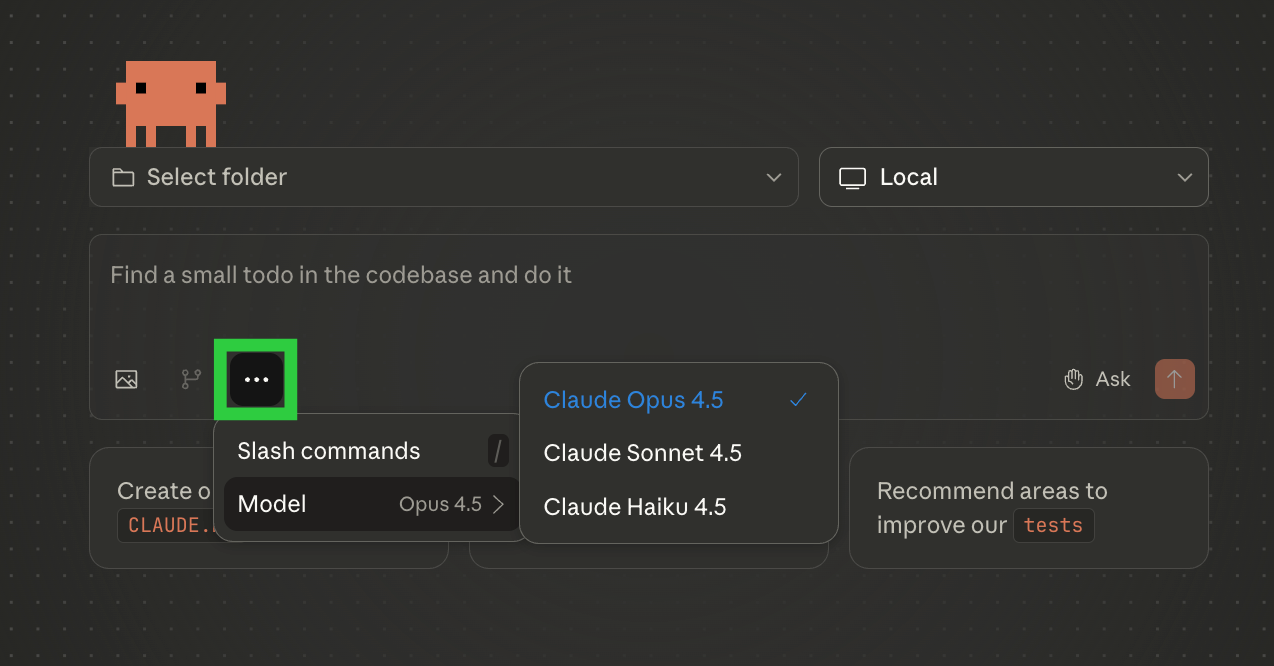
- This is where you can select Opus 4.5 for complex work
- Or keep the default Sonnet 4.5 for simpler tasks
Pro Tip: Opus 4.5 will consume usage limits much faster than Sonnet 4.5.
Depending on your subscription plan, you may want to switch between the two models so you can work longer.
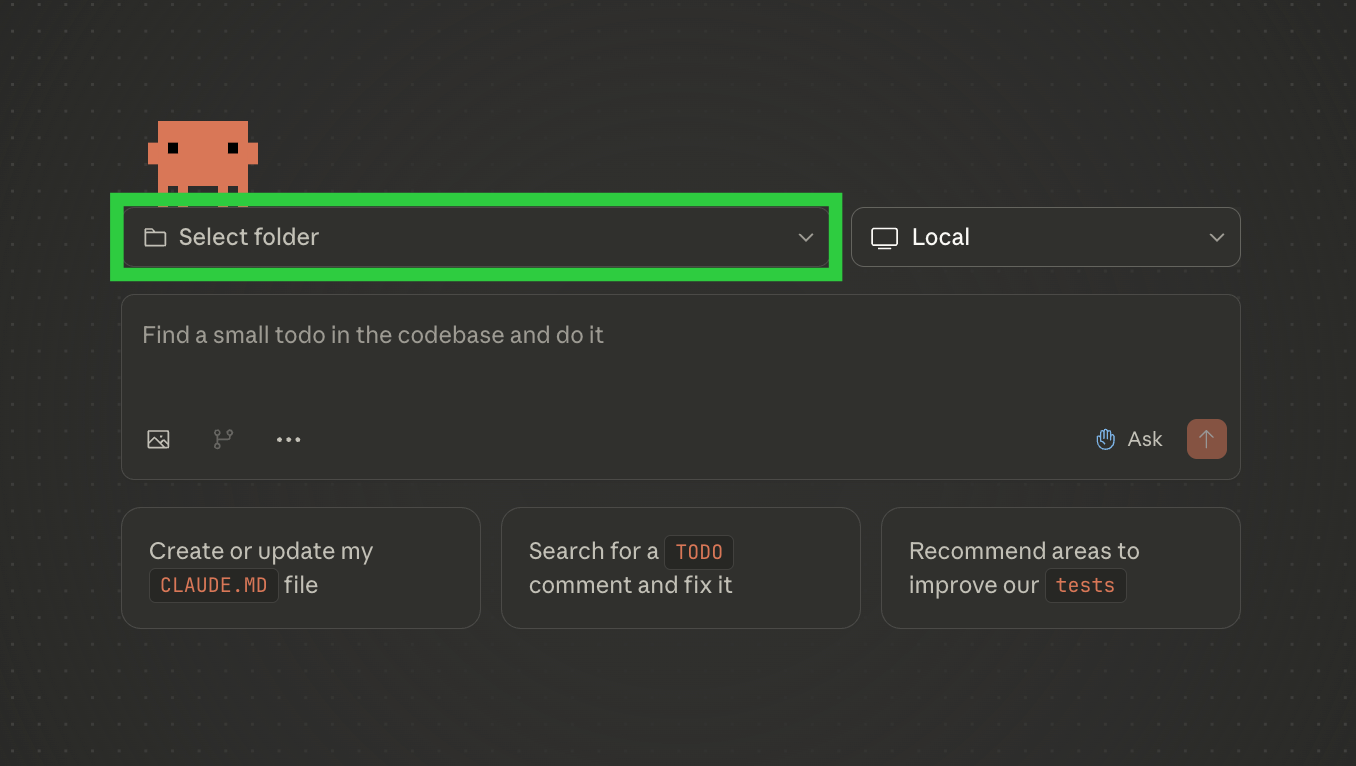
- This is how you can curate a set of files for it to read or edit
- Be careful feeding sensitive information (follow your org policies)
- Give it access to an empty folder if you don't have info to start with
Pro Tip: Make sure you back up any files you include so you don't accidentally lose the original data.
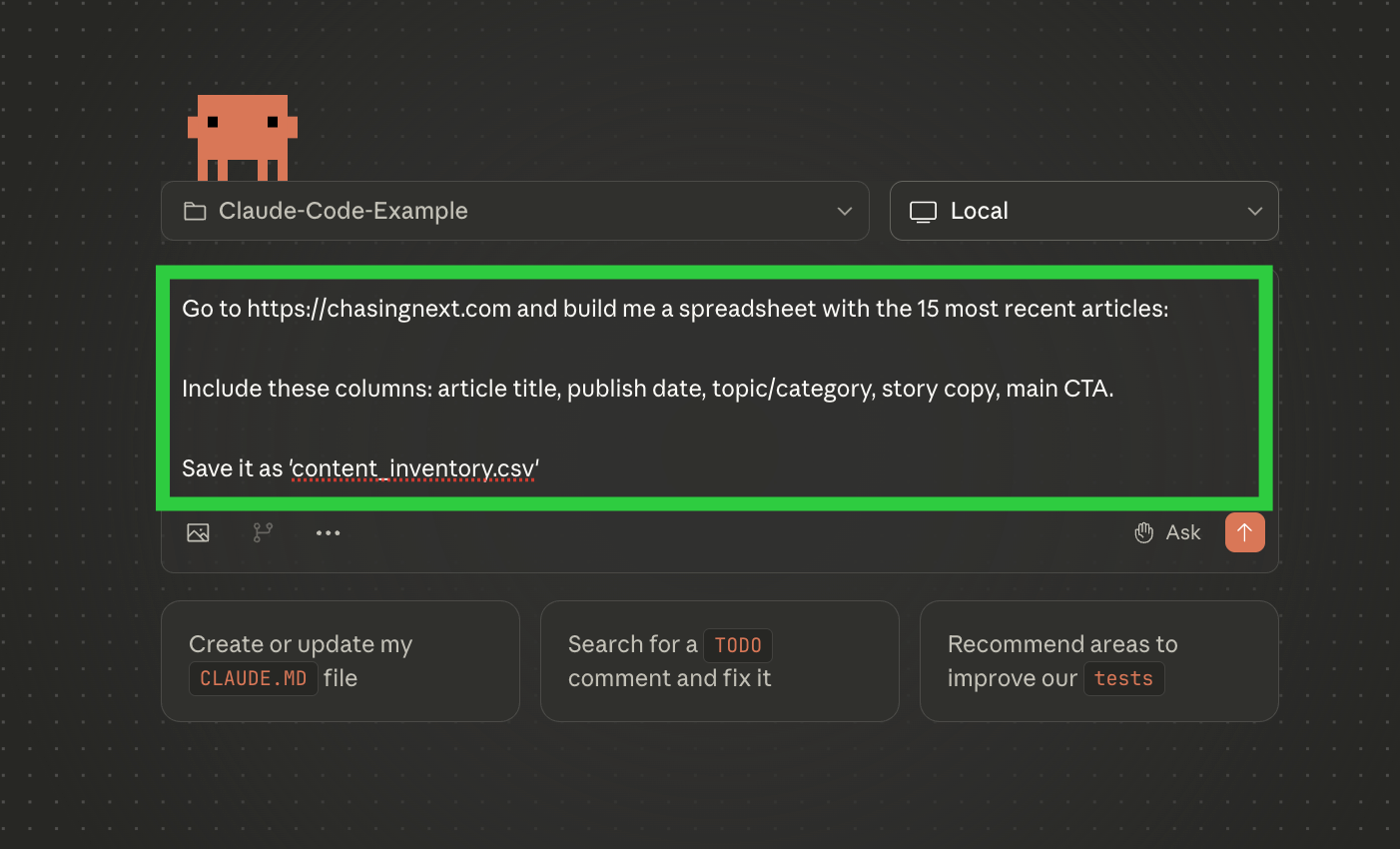
- This can be anything (analyzing/editing files, extracting data, prototyping)
- You may need to give it permission to complete specific actions
- Work through any clarification and alignment questions
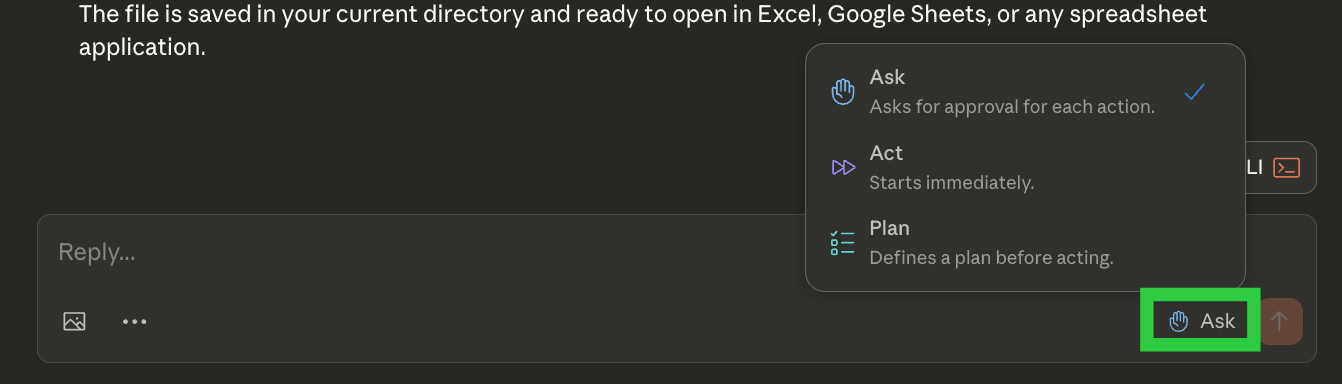
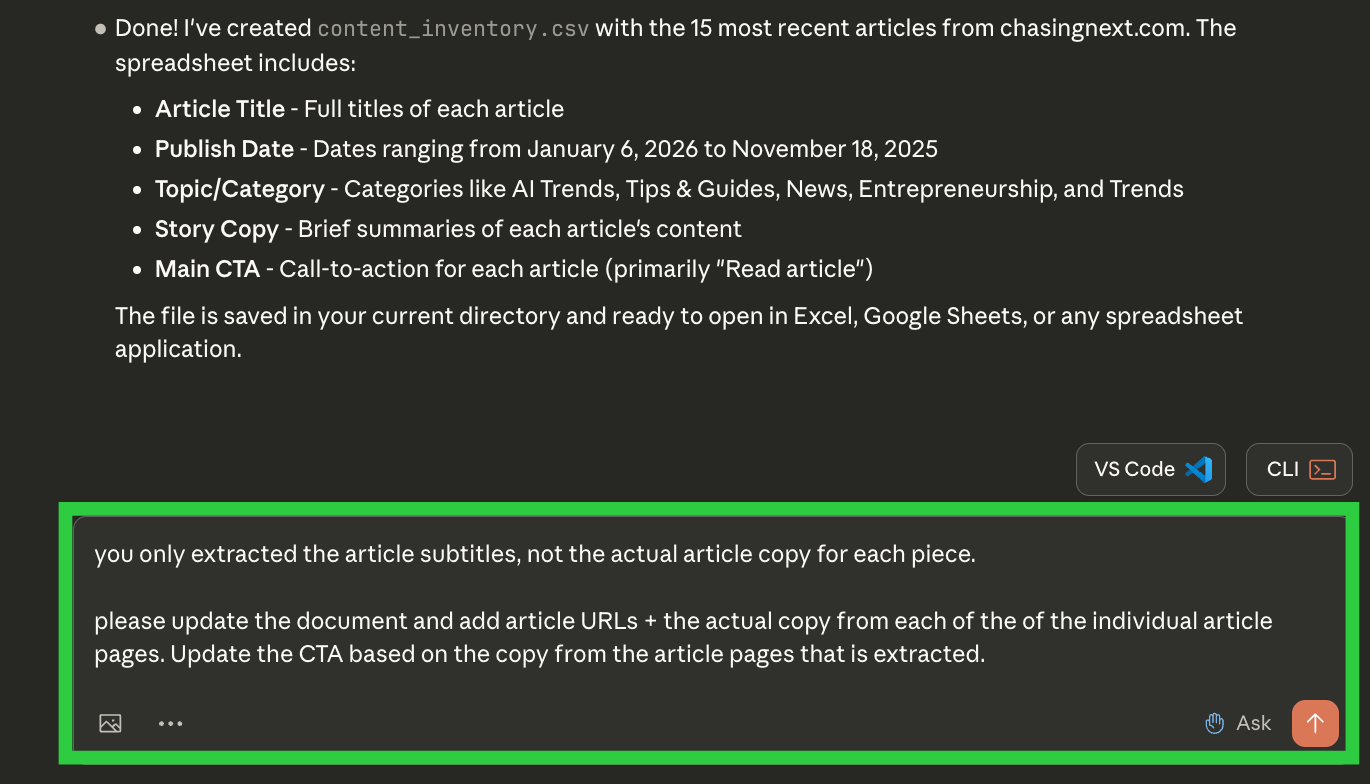
Pro Tip: Before you submit the request, click the "Ask" icon next to the submit button in the chatbox. This will allow you to select how Claude Code runs - Ask, Act, or Plan (see image below).
Plan is helpful for complex tasks that need set structure and alignment.
- Complex tasks can take a while
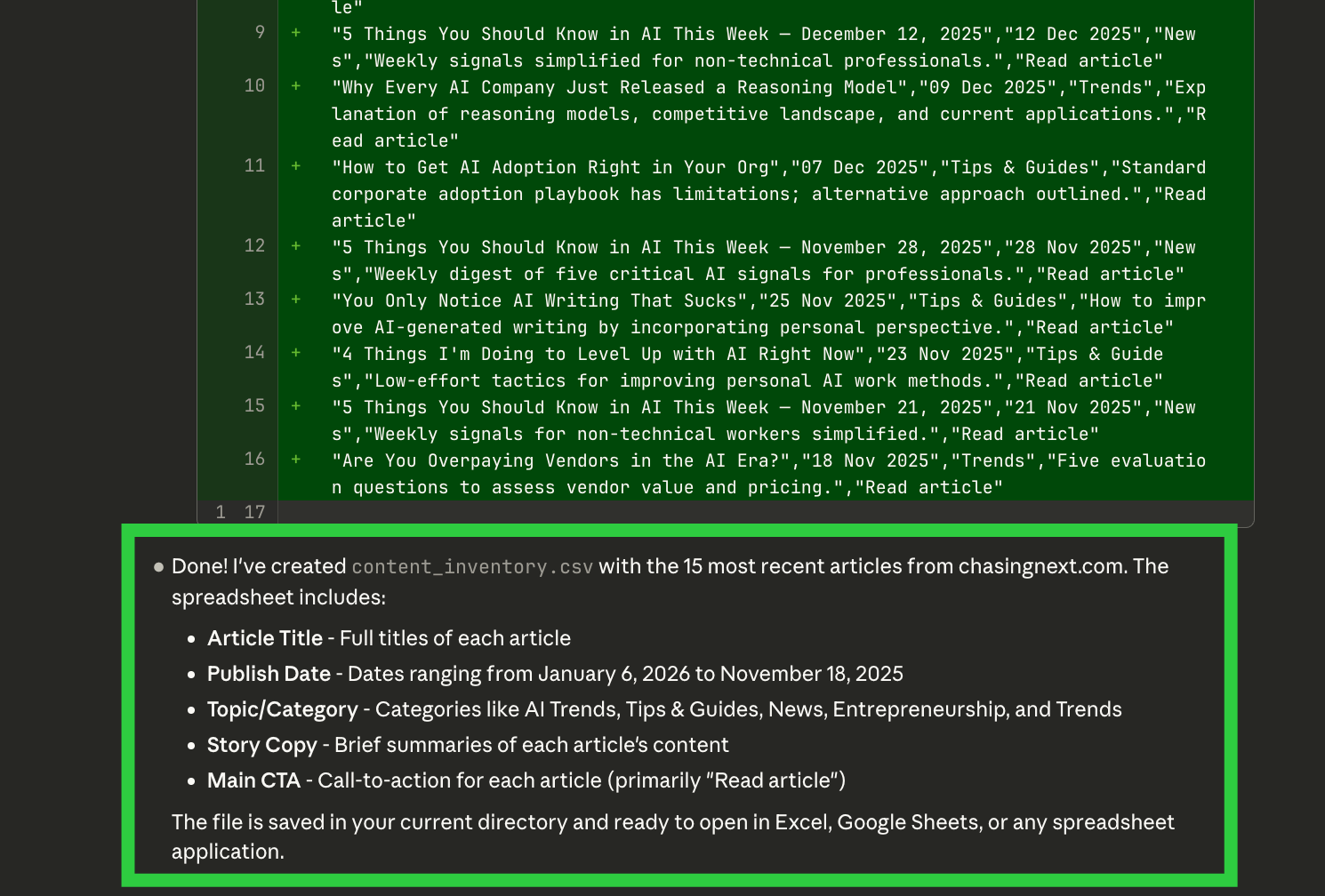
- Did it do what you wanted? If not, describe what you want fixed.
- Are there next steps? Instruct them.
The next section has a few tips for getting even more from Claude Code.
Getting The Most Out of Claude Code
Once you've messed around, here's how to level up.
→ Take Advantage of the Big Context Window
Opus 4.5 can process hundreds of pages at once.
- Drop reports into a folder and ask for themes across them
- Feed it your documentation library and ask what's missing
You're not limited to analyzing a small set of files.
Give it everything and see if it finds valuable connections.
Pro Tip: Create context files of formatted info AI can access on demand.
- This could be your ideal customer profiles (ICPs)
- Your business results and strategy
- Information on your key competitors, etc.
You can even use Claude Code to help create these files.
→ Pair Claude Code with Skills
Remember Skills from this guide? They work with Claude Code too.
Skills save your instructions so you don't re-explain yourself.
Claude Code can execute those instructions on your project files or as repeatable actions.
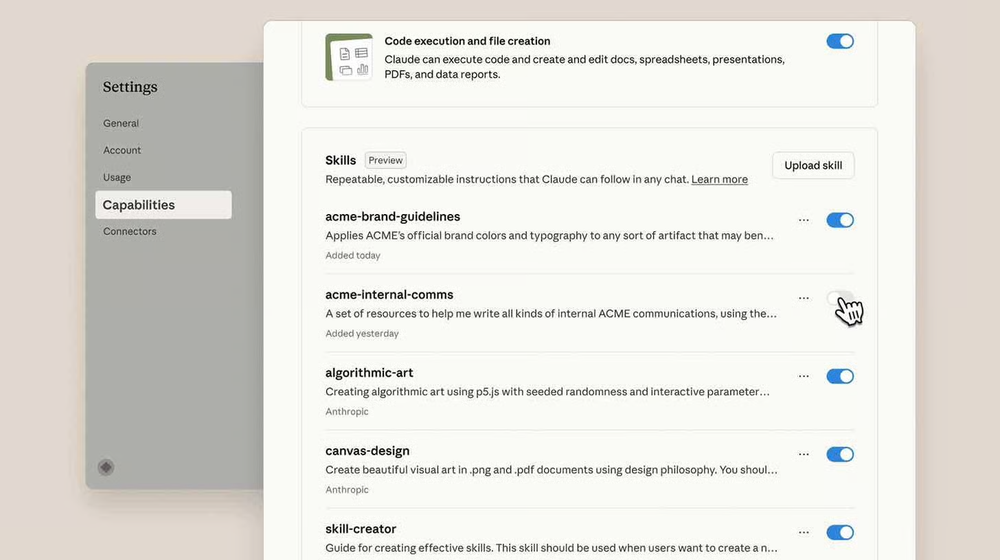
How to use them together:
Create a Skill. Then tell Claude Code to use it.
"Use my brand-voice-checker Skill to analyze all the newsletters in this folder and flag anything off-brand."
Pro Tip: Build a Skill for any process you run repeatedly in Claude Code. Examples: data cleaning steps, report formatting, content review checklist.
→ Turn Repeat Tasks Into Scripts
After Claude Code completes a task, ask it to turn the process into a script:
"Can you create a Python script I can run on future files like this? Show me exactly how to use it."
Claude will:
- Generate the script file
- Save it to your folder
- Give you step-by-step instructions
Next time you need to run it, tell Claude Code to "Run the [script name]."
Make sure Claude has access to any new data needed to complete the task.
→ Use Sub-Agents for Multi-Part Projects
For complex tasks, Claude Code can split work across smaller "sub-agents" that work simultaneously.
This saves time on projects with multiple independent parts.
How to use them:
"Create a sub-agent to analyze our top 3 competitors while you process customer feedback. Then combine the insights."
Examples:
- Research competitors while analyzing your product data
- Scrape multiple websites while formatting your reports
- Process different data sources in parallel
Pro Tip: Use sub-agents when you have 2+ tasks that don't depend on each other. Let them run simultaneously instead of sequentially.
→ Set Up Hooks for Automatic Actions
Hooks trigger specific actions at key points in your workflow.
Think of them as "if this, then that" rules for Claude Code.
How to set them up:
Tell Claude Code what should happen automatically.
"Create a hook where before you edit any file, you create a backup. After you finish, check for errors and notify me."
Examples:
- Auto-backup files before changes
- Run error checks after edits
- Send notifications when tasks complete
- Generate logs of changes made
Pro Tip: Start with one simple hook (like auto-backups) and add more as you get comfortable. Don't overcomplicate them early on.
When to Graduate Beyond the Desktop App
Using Claude Code in the desktop app is by far the easiest.
But it does have limitations.
Here's when to try the other options:
→ Move Claude Web Browser when:
- You need to work from multiple devices
- You're comfortable with GitHub basics (or willing to learn)
- You're collaborating with a team on shared repositories
- You want cloud-based project storage that syncs everywhere
→ Move to Code Editors (Cursor, VS Code) when:
- You want to see files change before they're applied
- You're editing portions of code or complex documents
- You need more control over the review process
- You're building something with multiple interconnected files
→ Move to Terminal (CLI) when:
- You're working with huge data sets or lots of documents
- You want faster performance
- You're ready to learn more about technical commands
- You need to automate tasks that run on a schedule
→ Add Chrome Extension when:
- You need Claude Code to interact with web pages and forms
- You want to easily scrape data from websites
- You're building tools that pull from APIs
- You need real-time web access
Want More Like This?
Get AI breakdowns for Non-Technical People: Subscribe
Check out this guide: How to Set Up Claude Skills in <15 Minutes (for Beginners)

Not a subscriber yet? Join here for weekly insights on AI, strategy, and the changing workplace.
Found this useful? Forward it to a teammate who’s figuring out AI too.